





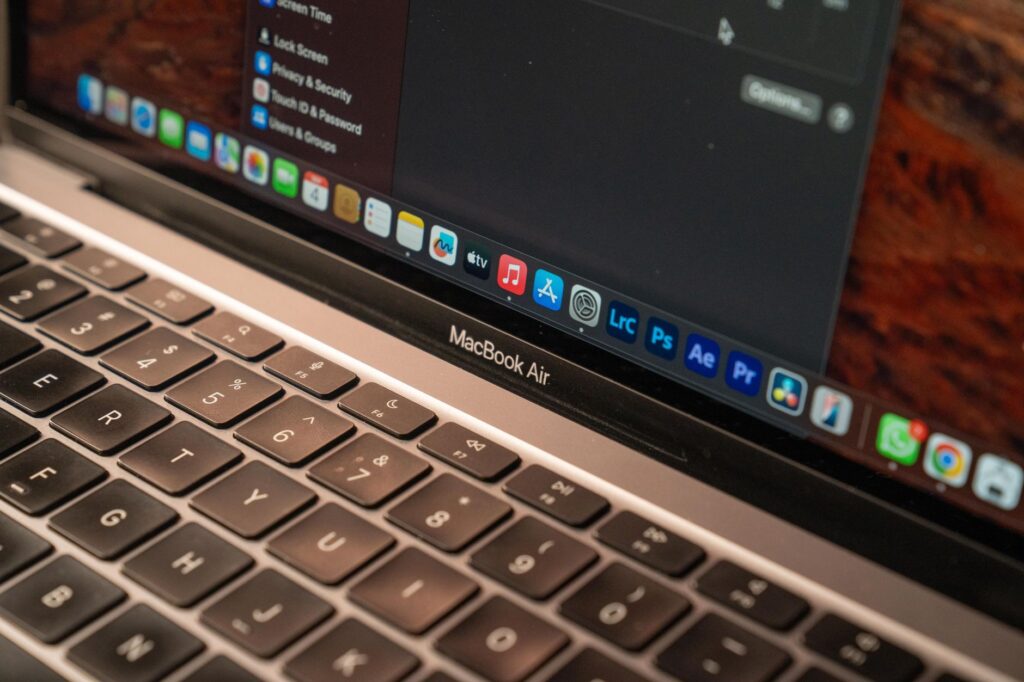
Google just pushed version 1.72.2.419 of the Gemini app for macOS, and the Gemini macOS update flips the icon to a white background that matches its iOS, Android, and web counterparts. You’ll spot the change the moment you open the app – the gray square is gone, replaced by a brighter container and a slightly larger spark logo. It’s a visual tweak, but it signals that Google’s still iterating on its desktop AI experience while it readies bigger changes for later this summer.
Key Takeaways
- The app jumps from 1.64.1.362 to 1.72.2.419, bringing a white icon and enlarged Gemini spark.
- Sidebar icons, including Library, now align with Google’s cross‑platform design language.
- Settings are split into grouped panels: Appearance, Shortcuts, Personal Intelligence, Gemini’s voice, About, and Debug.
- A new hotkey – pressing both Command ⌘ keys together – tacks the active window onto the chat, cutting out manual screenshots.
- The redesign hinted at I/O 2026 hasn’t arrived yet, but Google’s hinting that it’ll roll out alongside Gemini Spark and new voice features.
Gemini macOS update: What’s new in version 1.72.2.419
When you launch the refreshed app, the first thing you’ll notice is the icon’s new white backdrop. That’s a deliberate move to bring consistency across Google’s ecosystem – iOS, Android, and the web all already sport the lighter container. The Gemini spark itself is a touch bigger, giving the brand a bit more visual heft. It isn’t a radical redesign, but the change feels like Google finally caught up with its own branding guidelines.
Icon overhaul
The old gray square used to sit muted in the Dock, making the app look like a side project. Now the white background pops against dark mode, and the larger spark sits more centrally. It’s the same visual language you see on your phone when you swipe to open Gemini, so cross‑device recognition gets a boost. Developers who’ve been building extensions or shortcuts for Gemini will appreciate the clearer branding when they reference the app in their own UI.
Sidebar and settings revamp
Google also tweaked the sidebar. The Library icon got a subtle redesign to match the look on Android and iOS, and the Temporary chat and Minimize buttons in the top‑right corner have been scaled down. Those aren’t just aesthetic moves; they free up a few pixels that matter when you’re juggling multiple windows on a 13‑inch MacBook.
Settings, which used to be a single scrolling page, now live in a side panel that groups preferences into six sections: Appearance, Shortcuts, Personal Intelligence, Gemini’s voice, About, and Debug. That makes hunting for a specific toggle feel less like a scavenger hunt and more like navigating a familiar settings menu on any modern OS.
Historical Context: Gemini’s desktop journey
Gemini first arrived on macOS as a lightweight companion to its mobile counterparts. Early releases carried the same gray‑square icon that you see in the older version 1.64.1.362. Those initial builds focused on getting the core AI model onto the desktop without a heavy UI, which is why the design language felt more like a proof‑of‑concept than a finished product. Over the past several months, Google has been layering incremental improvements – from sidebar refinements to the addition of on‑device neural components. Each step has nudged the app closer to the visual polish that users already expect on Android and iOS. The current 1.72.2.419 release caps that incremental cycle, delivering a brand‑consistent look while still keeping the underlying engine unchanged.
From design sketches to reality: The I/O 2026 redesign promise
At I/O 2026 last month, Google unveiled a full redesign concept for Gemini that featured a sleek, more integrated UI and deeper voice interaction. The I/O 2026 showcase gave developers a taste of what the future could look like, but the current macOS update stops short of delivering that vision. The app still carries what the source calls “Neural Expressive components,” a hint that Google’s AI engine is already doing some on‑device magic, even if the UI hasn’t been overhauled yet.
Neural Expressive components linger
Those components let Gemini generate richer, more context‑aware responses without sending everything to the cloud. It’s a subtle performance boost that you might not see in the UI, but power users will feel the latency dip when they type long prompts. Google hasn’t announced a timeline for a full UI refresh, but the fact that they’re rolling out incremental tweaks suggests they’re testing the waters before a bigger launch.
Upcoming Gemini Spark and voice rollout
Google hinted that the full redesign will ship alongside Gemini Spark and new voice features later this summer. That aligns with the company’s pattern of bundling UI changes with functional upgrades – think of how Android’s Material You rollout coincided with new gesture controls. If the summer timeline holds, developers can expect a more cohesive experience that blends the visual overhaul with the upgraded AI capabilities.
New hotkey shortcut: Command‑Command window attachment
Last week Google rolled out a shortcut that many Mac power users will love: hitting both Command ⌘ keys at the same time automatically attaches the active window to the Gemini chat. It’s a neat trick that eliminates the need to take a screenshot, drag it into the conversation, and then annotate. Instead, the window appears as an interactive element inside the chat, letting you reference code, design mockups, or any other on‑screen content on the fly.
How the shortcut works
When you press the double‑Command combo, Google’s client captures the window’s bitmap and embeds it directly in the conversation thread. The feature mirrors the Gemini overlay on Android, where you can pull up the AI bubble over any app. On macOS, the shortcut feels native – it respects the OS’s keyboard shortcuts and doesn’t clash with existing hotkeys.
Implications for developers and power users
For developers building on top of Gemini’s API, the UI tweaks mean a slightly different set of expectations around branding and user flow. The new icon and refreshed settings panel suggest Google wants a tighter, more polished experience that mirrors its mobile products. That could influence how you design companion tools or extensions – you’ll want to match the white icon aesthetic to keep the overall feel cohesive.
- Consistency across platforms reduces friction for users who switch between macOS, Android, and iOS.
- The side‑panel settings layout makes it easier to discover new features, potentially increasing adoption of advanced options like Personal Intelligence tweaks.
- The Command‑Command shortcut could become a default workflow for developers who need to share live windows with the AI, cutting down on context‑switching time.
- Upcoming Gemini Spark and voice updates may introduce new APIs that rely on the refreshed UI, so staying on the latest version now could smooth future migrations.
What This Means For You
If you’re a developer who’s already integrating Gemini into your tooling, the new version is a free upgrade that aligns the desktop experience with the mobile one you probably already know. Updating to 1.72.2.419 gives you the fresh icon, the reorganized settings, and the handy Command‑Command shortcut – all without any extra cost. You’ll also be positioned to adopt the upcoming Spark and voice features without having to juggle multiple UI paradigms.
If you’re a power user who relies on Gemini for quick code snippets, design feedback, or brainstorming, the hotkey alone could shave minutes off your workflow each day. Instead of snapping a screenshot, you can just press Command twice and let Gemini see the window in real time. That’s a small but meaningful productivity boost that adds up over weeks and months.
Expanded scenarios for developers and creators
Imagine you’re debugging a piece of JavaScript that throws an obscure error. With the double‑Command shortcut you can pull the offending console window right into the chat, type a brief question, and watch Gemini suggest a fix without leaving your IDE. The same pattern works for a UI designer who wants rapid feedback on a mockup. Capture the design frame, drop it into Gemini, and get instant critique or alternative color palettes.
Another common workflow involves writing documentation. Instead of copying and pasting large blocks of text, you can attach the active markdown editor window, ask Gemini to rewrite a section in a friendlier tone, and receive the revised content directly in the chat. Because the shortcut captures the exact window state, Gemini sees the same formatting cues you see, which leads to more accurate suggestions.
Finally, consider a team lead who needs to synthesize meeting notes. While the meeting runs in a video‑conference window, a quick double‑Command press can embed that window into Gemini, prompting the AI to generate a concise summary. The result is a one‑click bridge between live content and AI‑driven synthesis.
Key Questions Remaining
Even with the latest update, several points remain open for the community. Will Google roll out the full I/O 2026 redesign on macOS before the summer deadline, or will it keep the incremental approach? How will the upcoming Gemini Spark and voice features interact with the current settings architecture – will new panels be added or will existing ones be expanded? Lastly, what level of on‑device processing will future “Neural Expressive components” achieve, and will that affect battery life on portable Macs?
Sources: 9to5Google, The Verge